
How to Log into XMS with FIDO Security Key
This job aid assists users on how to log into XMS on a desktop using their FIPS 140-2 compliant FIDO security key, including the first-time user account registration process.
NOTE: FIDO security key login is supported on both desktop and mobile device. For FIDO security key log in from a mobile device, refer to "How to Log into XMS with Fido Security Key".
-
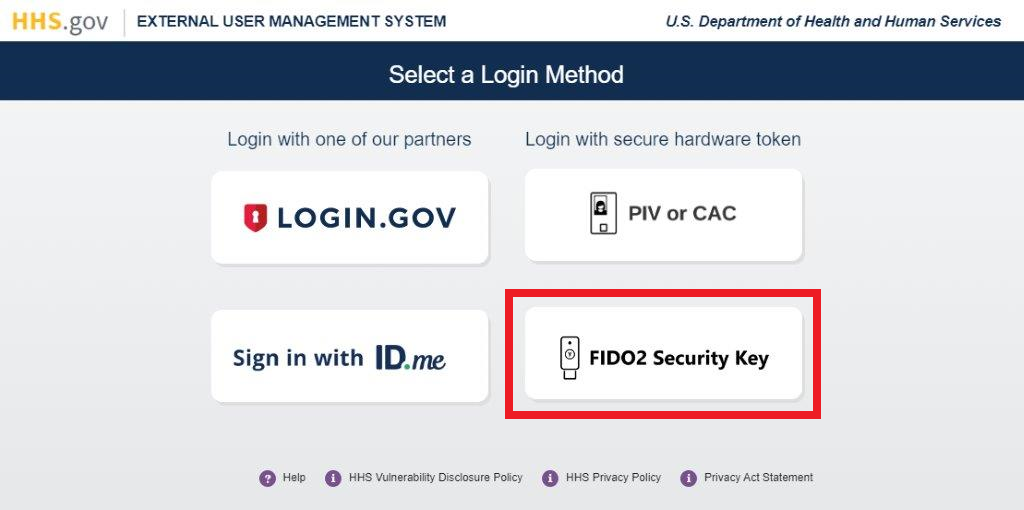
Navigate to (https://xms.hhs.gov), and with your FIDO security key inserted into or presented to your device, click the FIDO security key button on the XMS login page. For quick and easy access to your applications, add this page to your browser favorites and create a desktop shortcut.
-
A dialog box will be displayed requesting you enter your PIN for the FIDO security key. Type in PIN, then click "OK".
-
Enable your FIPS 140-2 compliant FIDO security key to be used by XMS by touching the security key or tapping an NFC security key against your device.
NOTE: If you are having trouble presenting your FIDO security key, please contact your IT helpdesk.
-
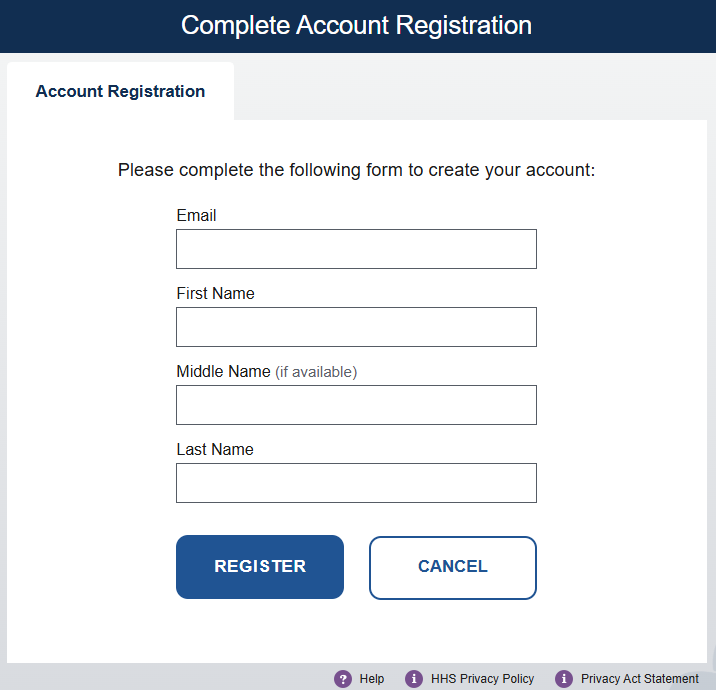
If this is your first-time logging into XMS, you will need to register your account. After successfully enabling your FIDO security key, you will be redirected to the Complete Account Registration page. Enter your information and click the “Submit” button to continue. If the email is associated with an existing XMS account, stop and go to step 5.
-
If the email is already associated with an existing account in XMS, log into XMS with your Login.gov credentials, log into XMS with your ID.me credentials or log into XMS with PIV or CAC credentials and link your FIDO security key from the My Profile page.